
Save a route from your search
- Choose your route, date and passenger details, then search for flights.
- Tap the heart in the search results to save the route.
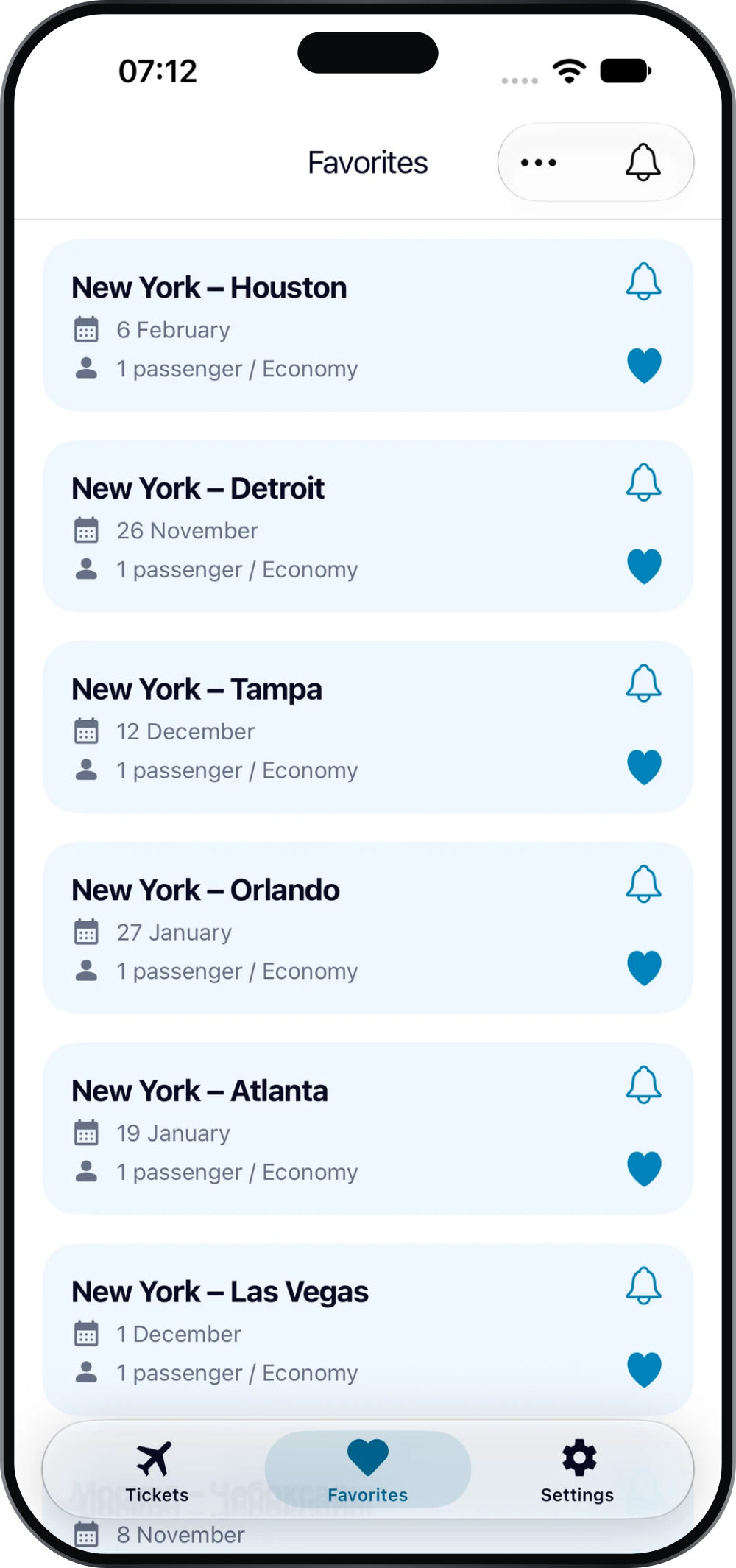
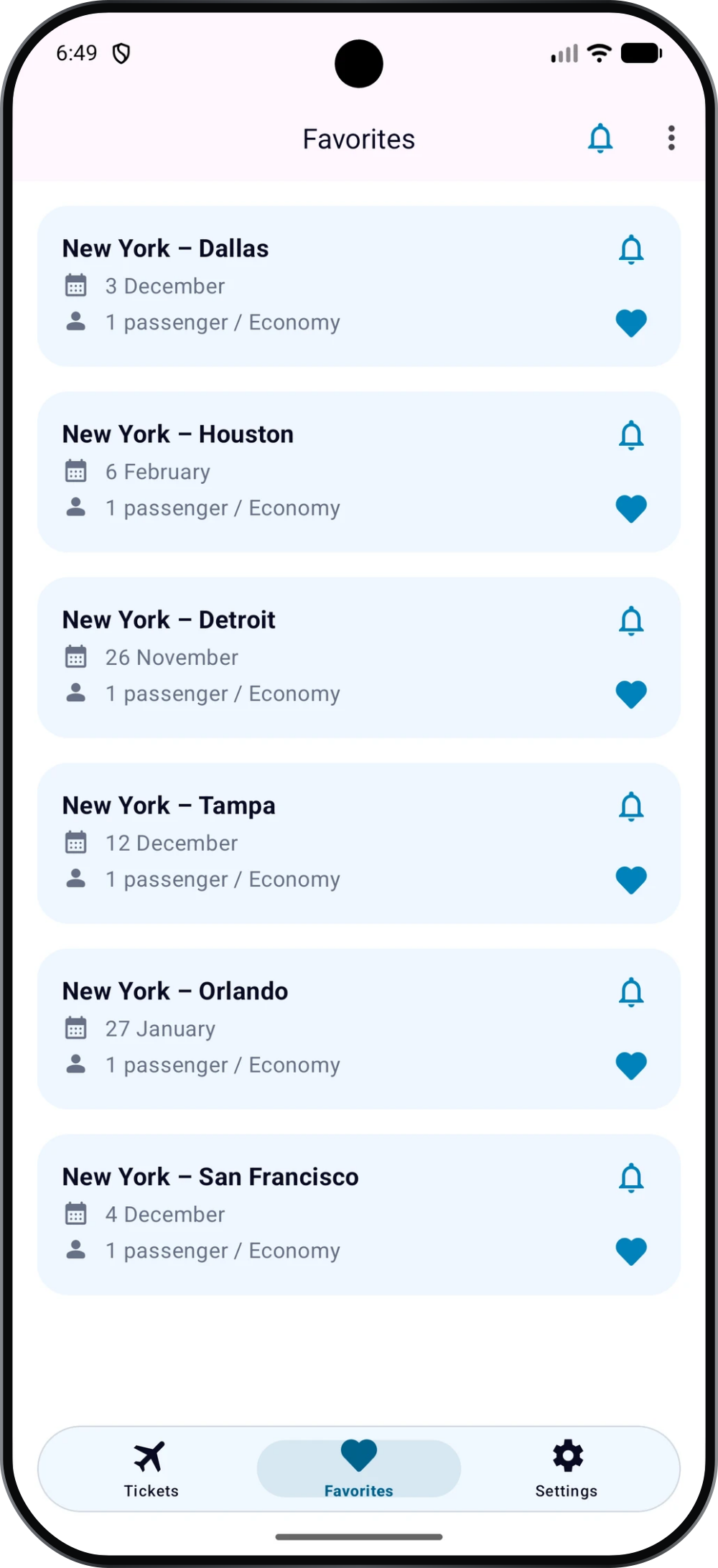
- Open Favorites to find the saved route card.
The card shows the route, date and passenger details, so you can distinguish similar trips. A saved route helps you return to a search; it is not a booking.
Return to a saved trip
Open Favorites and select the route you want to revisit. Check the date, passenger count and cabin class before comparing the latest offers.
The price you saw earlier may have changed. Run a fresh search and review the available flights when you are ready to choose.
Track prices for a saved route
Use the bell on the route card to set up price tracking. You can choose a notification time window and check the current fare from the tracking screen.
Saving a route and enabling notifications are separate actions. If you want alerts, check that tracking is enabled and that your phone allows notifications.
Keep the list useful
Review the dates on your saved cards when planning a new trip. A familiar destination may still need a different search if the date or passenger details have changed.
If you have not settled on dates, explore the calendar before saving the route you want to follow.

