
Open the calendar for your route
- Choose your departure city and destination in the Tickets tab.
- Set the passenger details and cabin class for your trip.
- Tap Low-price calendar to view fares across the month.
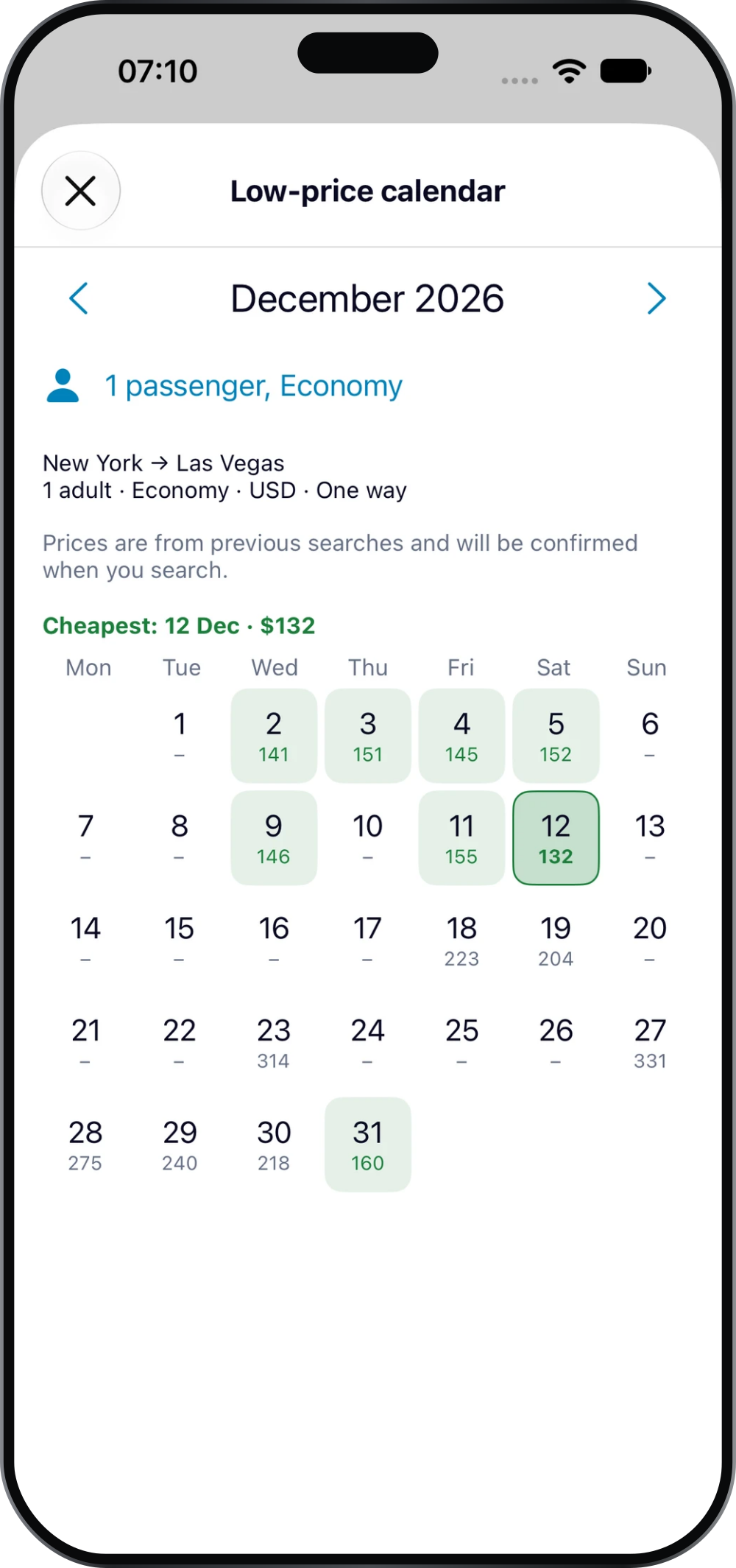
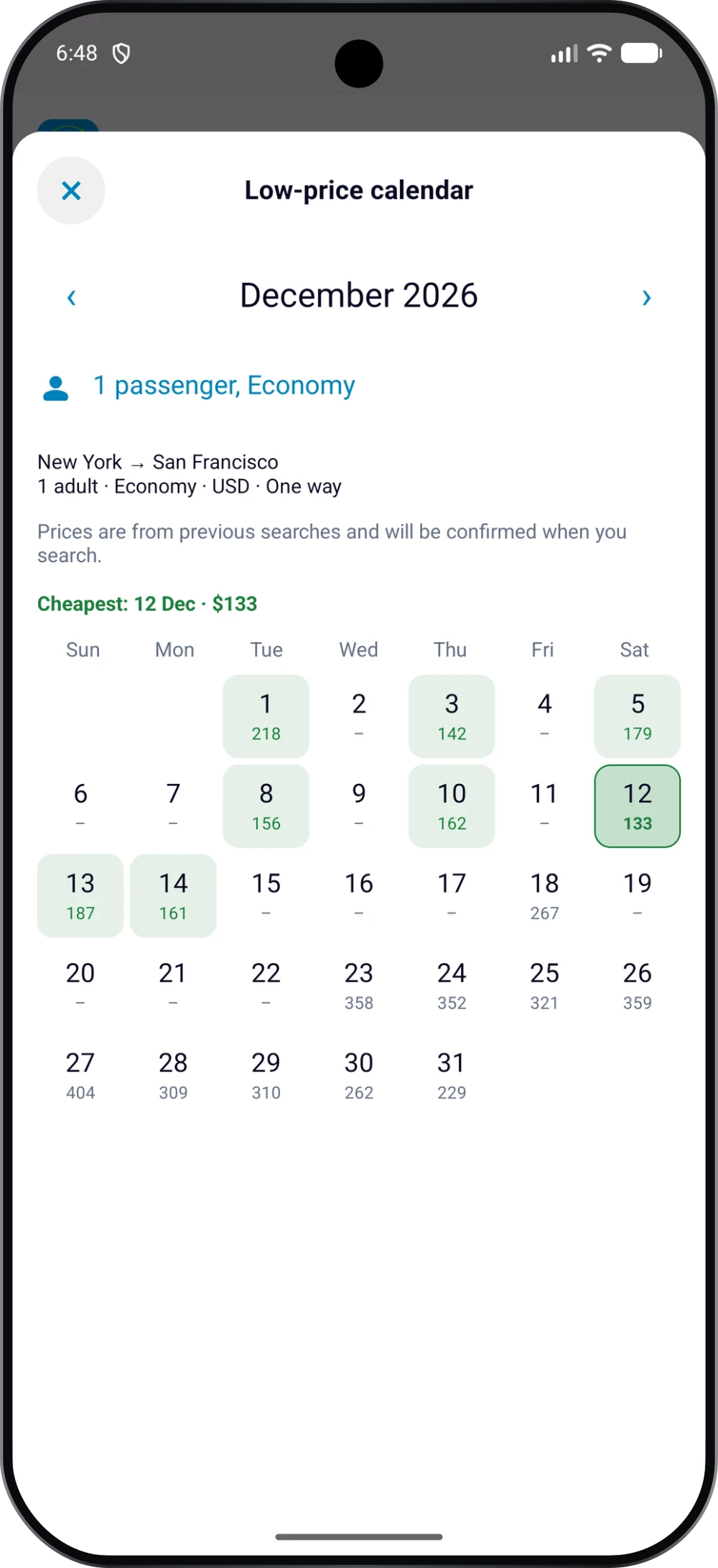
Use the month arrows to explore other dates. Check the route, passenger details and currency shown above the calendar so that you know what the displayed fares refer to.
Read the fares correctly
The calendar shows prices from previous searches. It highlights lower fares and identifies the cheapest date among the prices currently displayed.
A dash means that no price is displayed for that date. It does not by itself mean that flights are unavailable. Run a search for the date you want to check current offers.
The calendar is a guide to choosing dates, rather than a live quote. A fare may change when you search.
Choose a date and compare flights
Use the calendar to choose a date worth checking, then search and compare the available flights. Consider the flight times and layovers as well as the price.
Moving your trip by a day can affect other plans and costs. Choose a date that works for the whole journey, not just the lowest number in the calendar.
Keep an eye on your chosen date
Once you have chosen a route and date, use Track prices to receive updates about new lowest fares. Alerts apply to the selected dates; they do not replace checking the current offer before booking.

